
PC freezes: hardware or software problem?
November 3, 2026 · 7 min read
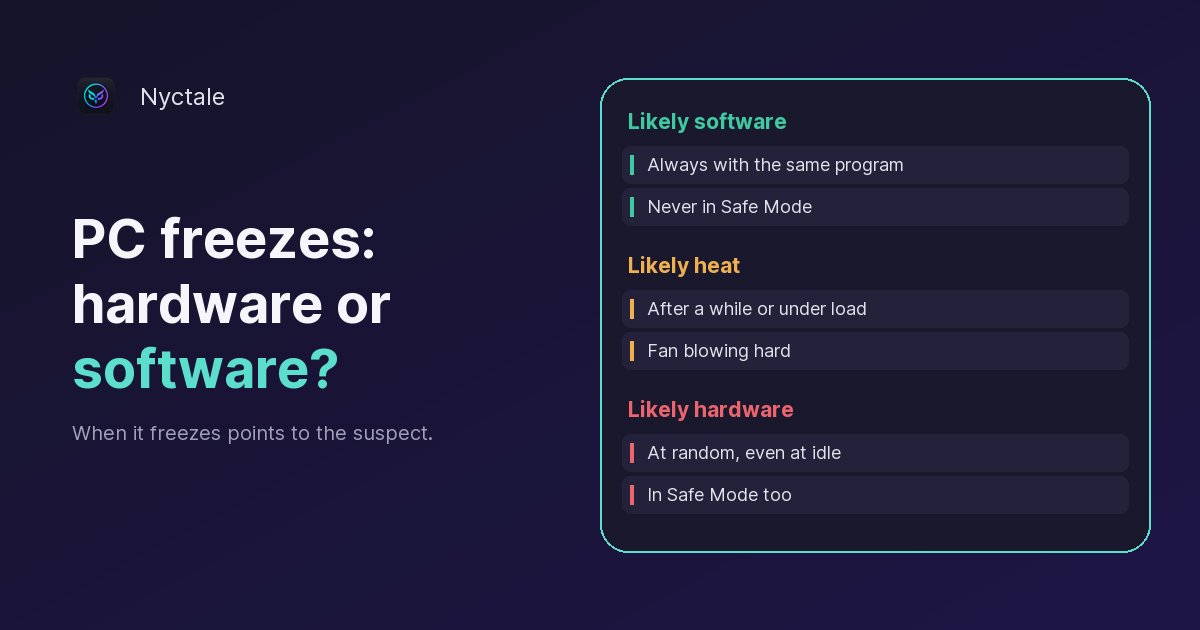
A PC that freezes is suffering either from software hogging the processor, memory or disk, or from a struggling component: overheating, a tired disk, faulty memory, an unstable driver. To decide, four clues are usually enough: is the freeze total or limited to one window, when does it happen, what does the Windows history say, and does the PC still freeze in Safe Mode? If it never freezes in Safe Mode, a program or driver is to blame; if it freezes there too, hardware becomes the main suspect.
A freeze is more puzzling than a crash: no blue screen, no message, just a still picture and a power button you end up holding down. It does leave clues, though, provided you note them at the right moment. This article gives an elimination method, from the simplest test to the most technical. If your PC is not frozen but merely slow, read why a computer is slow for no obvious reason instead.
Freeze, crash or slowdown: what are we talking about?
Three situations look alike but have different causes. A slowdown is a PC that responds, but late. A crash is a stop: blue screen, black screen, restart. A freeze is a PC that is still on but no longer responds at all, with a frozen picture and sometimes looping sound.
The distinction matters, because a freeze you end by holding the power button becomes, as far as Windows is concerned, an abrupt shutdown: at the next startup, the system log records event 41 (Kernel-Power). So if you see those events piling up, they are not necessarily crashes; they may be your own forced restarts after a freeze. Our article on a PC that restarts by itself explains how to read those traces, and the one on the Windows 11 blue screen covers freezes that end in a system error.
Is the PC really frozen, or just very busy?
Before suspecting a fault, check that the system is truly stuck. An overloaded PC can look frozen for a minute or two and then recover: that is overload, not a freeze. Four quick tests, in order:
- Wait two minutes without touching anything. If the PC recovers, it was busy: a program, an update or an overloaded disk was holding it up.
- Press Ctrl + Shift + Esc to open Task Manager. If it opens, Windows is still running: see which program is taking up the processor, memory or disk, and close it.
- Press the Num Lock key. If its light turns on and off, on most keyboards, the system still responds to the keyboard: the block is more likely in the display or a single program.
- Press Windows + Ctrl + Shift + B. This shortcut restarts the graphics driver: a beep and a screen that flickers and comes back point to a display problem, often the graphics card driver.
If only one application is frozen and the rest responds, the problem is almost always software: the program is waiting for a resource, looping or crashing, and Windows adds “Not responding” to its title bar. If everything is frozen, mouse included, and none of these tests gets a response, the cause runs deeper: an overloaded system, the disk, memory, a driver or hardware.
When does the freeze happen?
The moment of the freeze is the most useful clue, and it costs nothing: note it for a week, along with what you were doing at the time.
Always with the same program
A game, an editing program, one particular browser: the culprit is that program, its extension or the driver it uses most, usually the graphics driver. Updating or reinstalling the program is the first thing to try.
After a while or under heavy load
A PC that lasts twenty minutes and then freezes during a game or a video export points to heat, especially if the fan is blowing hard. The processor first slows itself down for protection, then the system can lock up or cut out. Our article on a fan that never stops spinning helps sort this out.
When a lot is open
If freezes come with many tabs or programs open, the working memory is probably full: Windows falls back on the much slower disk, and everything stalls at times. See how to read a full RAM.
At random, even at idle
A freeze unrelated to what you are doing, including when the PC is idle, points to hardware: a failing disk, a faulty memory stick, an unstable power supply. It is the least common case, but the one that deserves the most attention, because your data may be at stake.
Since a specific update
If the freezes started right after a Windows update, a driver update or a software install, the coincidence is a strong clue: roll back before looking any further.
Where does Windows keep a record of freezes?
A freeze leaves no message on screen, but it often leaves traces in the logs, as long as you read them soon afterwards.
- Reliability history: type “reliability” in Windows search and open “View reliability history”. It shows, day by day, applications that stopped responding, improper shutdowns and hardware failures. The same program coming back every day is a serious suspect.
- Event Viewer, Application log: event 1002 (“Application Hang”) names the program that stopped responding.
- Event Viewer, System log: repeated warnings from the “disk” source (event 153, an I/O operation was retried) or from the storage controller (event 129, a reset) at the time of the freezes point to the disk or its connection.
- Event 41 at restart only confirms that the PC was switched off without a clean shutdown, which also happens when you force it off after a freeze.
Compare the times of these events with your notes. A program that shows up at every freeze points to software; disk errors at every freeze point to hardware; no trace at all, with random freezes, suggests memory or the power supply.
How do you isolate the cause: software or hardware?
If the clues are not enough, work by elimination, from simplest to most technical.
- Start in Safe Mode: Settings > System > Recovery > Advanced startup > Restart now, then Troubleshoot > Advanced options > Startup Settings > Restart, and press 4. Windows then loads only the essentials. Use the PC that way for as long as it normally takes for a freeze to happen.
- If the PC never freezes in Safe Mode, the culprit is a driver or a program loaded at startup. Do a clean boot: type msconfig, Services tab, tick “Hide all Microsoft services”, then “Disable all”, and disable the programs in the Startup tab of Task Manager. Then re-enable them in small groups to find the culprit. Our guide to startup programs you can disable helps you sort them.
- If the PC freezes in Safe Mode too, hardware becomes the main suspect. Test the memory with the Windows Memory Diagnostic tool (type mdsched in search): it restarts the PC and checks the memory before Windows loads.
- Check the disk's health and back up your files before any other test: see signs of a failing hard drive.
- Unplug recently added hardware (USB stick, external drive, card) and, on a desktop PC, plug it straight into the wall, without a power strip.
What do you do depending on the answer?
- A program is to blame: update or reinstall it, disable its extensions, and limit the programs that launch at startup.
- A driver is to blame: if the problem began after an update, open Device Manager, right-click the device > Properties > Driver > “Roll Back Driver”. Otherwise, install the manufacturer's version.
- Full working memory: close unused tabs and programs; if it keeps coming back, adding memory fixes the problem for good.
- Heat: dust out the vents with a can of compressed air, with the device switched off and unplugged, and never rest a laptop on a bed or sofa. If it keeps overheating, a clean with fresh thermal paste at a repair shop usually costs 50 to 80 euros. No software can fix dust.
- Faulty disk or memory: back up immediately, then have the part replaced. Before reinstalling everything, read what a diagnostic can save you before reformatting: reformatting fixes neither a tired disk nor overheating.
Conclusion: a freeze is diagnosed by elimination
A freeze does not reveal its cause, but when it happens, the Windows logs and the Safe Mode test are almost always enough to choose between software, heat and hardware. Nyctale's analysis does not see the freeze itself, since it is not running while the freeze happens; what it does read is the list of suspects: programs using a processor core for no reason, working memory that is full or spilling onto the disk, episodes over the past two weeks where the processor had to slow down because of heat, abrupt shutdowns in the past month, and a disk that is nearly full or reported unhealthy by Windows. The analysis is free, the first repair is on the house, and the full version costs €24.99 as a one-time purchase.
Frequently asked questions
Why does my PC freeze?
Most often because a program or driver is blocking the system, the working memory is full or the PC is overheating; more rarely because of a faulty disk, memory stick or power supply.
How do I know if the problem is hardware?
If the PC also freezes in Safe Mode, or at random even when idle, hardware becomes the main suspect. Then test the memory with mdsched and check the disk's health.
Can a disk freeze the whole computer?
Yes. A disk struggling to read or write blocks Windows while it waits for answers. Warnings from the “disk” source in the System log at the time of the freezes confirm it.
Should I force the PC off when it is frozen?
Only as a last resort, after waiting two minutes and trying Ctrl + Shift + Esc. A forced shutdown can lose unsaved work and later shows up as an abrupt shutdown (event 41).
What does Nyctale read?
Its free analysis reads runaway programs, working memory, thermal throttling, abrupt shutdowns and disk health, then states the most likely cause in plain language.