
PC restarts by itself: causes and checks
October 30, 2026 · 7 min read
A PC that restarts by itself almost always has an identifiable cause: a Windows update installing, overheating, a weakening power supply or battery, an unstable driver, or more rarely a faulty disk or memory. The method has two steps: first find out whether the restart was intended by Windows or was an abrupt shutdown, then read the traces Windows records after every abnormal shutdown. Those traces exist on every Windows 10 and 11 PC, and they save you from replacing parts at random.
Nothing is more annoying than a restart in the middle of an unsaved document, and it is tempting to suspect the worst straight away. Yet a single restart is often nothing to worry about; it is repetition that should make you investigate. If your PC also shows a blue screen before restarting, read our article on the blue screen in Windows 11 as well, which covers the error codes.
Is the restart intended or abrupt?
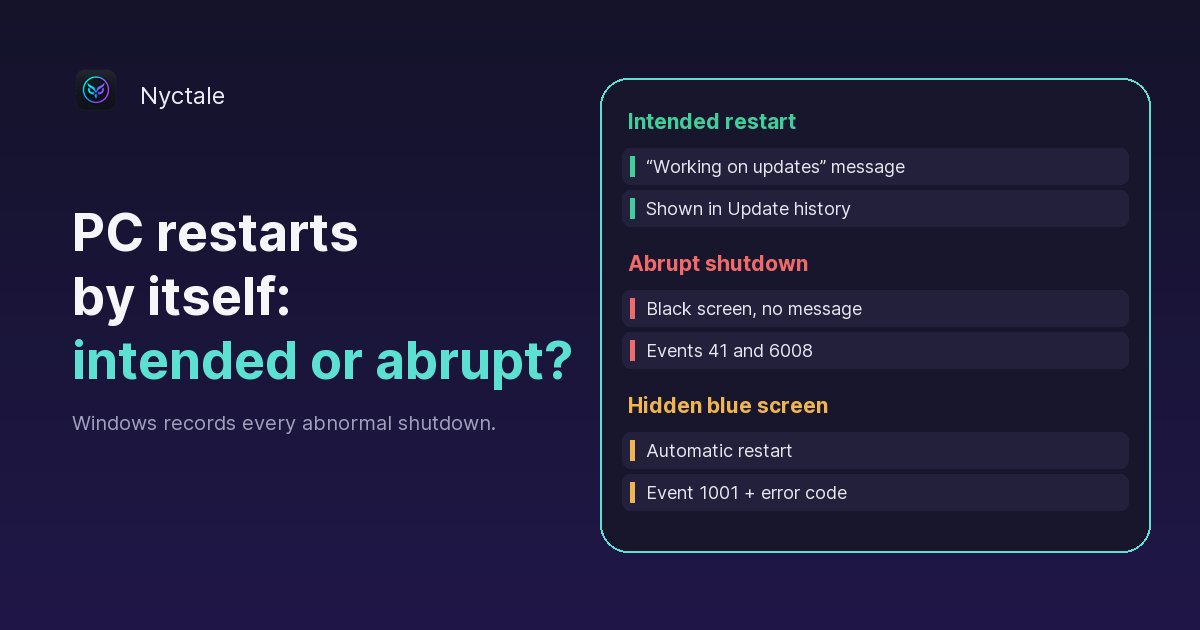
An intended restart is orchestrated by Windows: it follows an update, a driver installation or a click of yours. Windows closes programs, shows “Restarting” or “Working on updates”, then starts again. After an update it may do this at night or when you are away from the screen, which in the morning looks like a PC that restarted “by itself”.
An abrupt shutdown, on the other hand, looks like a power cut: the screen goes black at once, with no message, and the PC restarts or stays off. Windows had no time to shut down properly. On the next boot it notices and writes it to the system log: event 41 (“Kernel-Power”, the system rebooted without cleanly shutting down), event 6008 (“the previous system shutdown was unexpected”) and, if a blue screen occurred, event 1001, which keeps the error code.
One detail often misleads people: by default, Windows restarts automatically after a system error. The blue screen only appears for a moment, or not at all, and all you see is a restart. If you suspect this, the log will tell you: an event 1001 at the time of the restart means a blue screen you never saw.
What are the most frequent causes?
1. A Windows update
This is the most mundane cause and the easiest to check. Windows Update restarts outside the “active hours” you have set; if they do not match your real schedule, the restart comes at the wrong time. Nothing serious: it is an intended restart, not a fault.
2. Overheating
When the processor reaches a dangerous temperature, it first slows down to protect itself, then the PC cuts out if that is not enough. The typical sign: a shutdown during a game, a video export or a long session, and a fan that blows hard even at idle. On a PC more than three or four years old, dust in the vents and worn thermal paste are the most common cause.
3. A weakening power supply or battery
On a desktop, a tired or undersized power supply gives out when power demand rises, typically under graphics load. On a laptop, a worn battery can cut the machine off well before it shows 0%. A faulty power strip or a power cut leave exactly the same traces as a fault: that is why an abrupt shutdown on its own does not prove overheating.
4. An unstable driver or program
A faulty graphics, Wi-Fi or storage driver causes blue screens, and therefore restarts. Suspicion grows when the problems started right after a driver update or after installing software that adds drivers (antivirus, monitoring tools, peripheral software).
5. A faulty disk or memory
A faulty memory module or a disk near the end of its life cause random crashes, unrelated to load or updates. It is the least frequent cause, but the most important one to catch, because it puts your data at risk.
How do you find the cause, step by step?
Work in this order, from simplest to most technical. Most of the time, the cause shows up within the first three steps.
- Note the context of each restart: the time, what you were doing (gaming, video, nothing at all), and whether the PC was on battery or plugged in. A restart always under load points to heat or power; at idle, to a driver or hardware.
- Open Settings > Windows Update > Update history. An update installed at the time of the restart explains everything.
- Type “reliability” in Windows search and open “View reliability history”. This monitor shows, day by day, improper shutdowns and application crashes, in a more readable form than Event Viewer.
- For the details, open Event Viewer (right-click Start), then Windows Logs > System, and filter on IDs 41, 6008 and 1001. Compare their times with your restarts.
- Keep an eye on heat: a fan that never stops is a clue, see a PC fan always running at full speed.
- If you suspect a hidden blue screen, turn off automatic restart: Control Panel > System > Advanced system settings > Startup and Recovery, untick “Automatically restart”. On the next crash, the blue screen will stay up with its code.
- Finally, check the hardware: disk health (see signs of a failing hard drive) and memory, with the Windows Memory Diagnostic tool (type mdsched in search).
One trap to know when reading the log: a single abrupt shutdown often writes two or three events at once (41 on reboot, 6008, and 1001 if there was a blue screen). Counting log lines therefore overstates the number of crashes. Nyctale itself had this flaw in an early version: one incident counted as three and looked like a serious problem. It now groups events written less than ten minutes apart, to count incidents rather than lines. Our page on diagnosing crashes and Kernel-Power event 41 compares this reading with Event Viewer and other free tools.
What do you do for each cause?
- Update: let it finish, then set your active hours in Settings > Windows Update > Advanced options, so restarts happen when you are not working.
- Overheating: dust out the vents with a can of compressed air, with the device off, unplugged, and preferably outdoors. Do not rest a laptop on a bed or sofa. If the heat persists, a full clean with fresh thermal paste at a repair shop usually costs 50 to 80 euros. No software can fix dust.
- Driver: if the problem began after a driver update, open Device Manager, right-click the device > Properties > Driver > “Roll Back Driver”.
- Power supply or battery: plug the PC straight into the wall, without a power strip, and remove recently added hardware. On a laptop, compare behaviour on battery and on mains power.
- Disk or memory: back up your files before anything else, then have the faulty part replaced.
When should you see a professional?
Call a repairer if abrupt shutdowns keep happening with no cause found after these checks, if the PC cuts out as soon as it works a little despite dusting, if the disk shows signs of wear, or if the computer no longer starts at all. In every case, back up your data first: it is the one action you can never regret. And if you are tempted to reinstall everything, first read what a diagnostic can save you before reformatting: reformatting fixes neither overheating nor a tired power supply.
Conclusion: read the traces rather than guess
Windows keeps a record of every abnormal shutdown; you just need to know where to look. Nyctale's analysis does it for you: it reads the system log for the last thirty days, counts distinct incidents, and treats three or more abrupt shutdowns in a month as the most serious sign in its report. It also cross-checks those shutdowns with the episodes where the processor had to slow down to protect itself from heat: when both coincide, with no stuck program to explain them, it points to cooling rather than software. The analysis is free, the first repair is on the house, and the full version costs €24.99 as a one-time purchase.
Frequently asked questions
Why does my PC restart without warning?
Most often because of a Windows update, overheating, a weakening power supply or battery, an unstable driver, and more rarely a faulty disk or memory. The Windows log lets you decide between them.
How do I see unexpected shutdowns in Windows?
The simplest way: type “reliability” in search and open the reliability history. For details, Event Viewer, System log, IDs 41, 6008 and 1001.
Can a PC restart because of heat?
Yes. An overheated processor first slows down, then the PC cuts out to protect its components. A shutdown under load with a noisy fan is the typical sign.
Why don't I see the blue screen?
Because Windows restarts automatically after a system error. Untick “Automatically restart” in Startup and Recovery to keep the blue screen and its code on display.
Can Nyctale find the cause?
Its free analysis reads the abnormal shutdowns of the last thirty days, disk health and signs of overheating, and states the most likely cause in plain language.