
RAM Full at Idle on Windows 11 & 10: How to Read Memory Usage and What to Do
October 23, 2026 · 6 min read
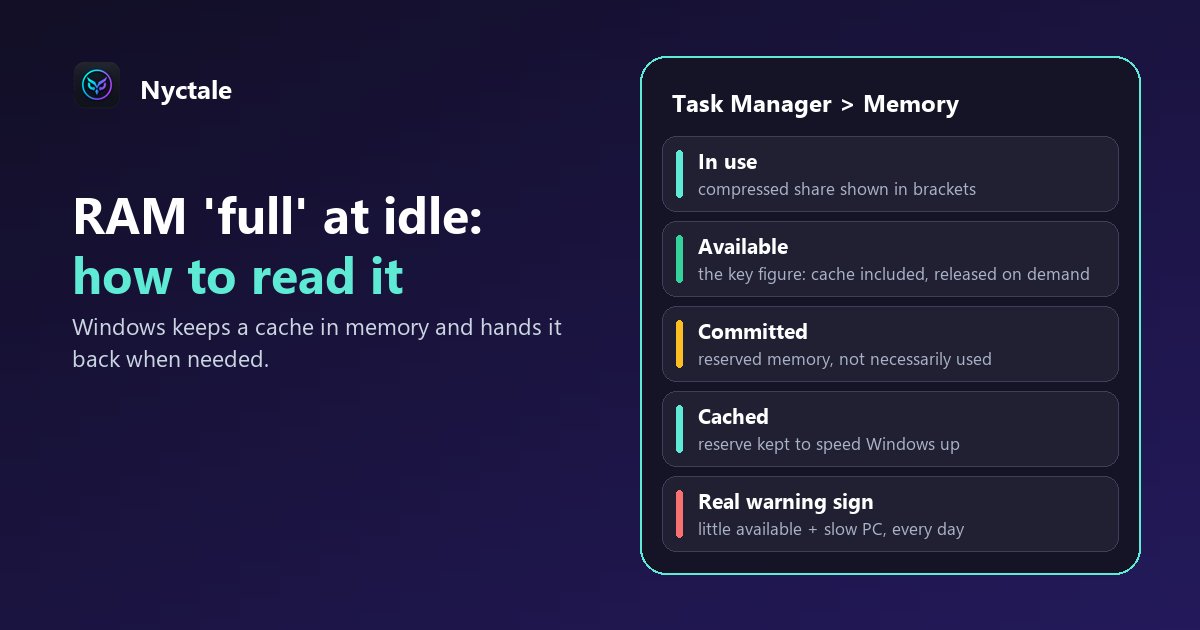
RAM that looks full at idle on Windows 11 or 10 is not always a problem: Windows deliberately keeps data cached in free memory and hands it back as soon as a program needs it. The real warning sign is available memory that stays very low while the PC gets slow. To check, open Task Manager (Ctrl + Shift + Esc), Performance tab, Memory section, then sort processes by memory to find the big consumers.
RAM is the computer's working space. When it truly runs short, Windows compresses data or moves part of it to the disk, which is far slower: everything turns sluggish, even if the processor and disk are fine. But a high percentage on its own does not mean memory is short. This article explains how to read each figure, how to tell well-used memory from saturated memory, and what to do in each case. If your PC is slow with no obvious cause, also see a slow computer with no obvious reason.
Is 'full' memory at idle always a problem?
No. Empty RAM is wasted RAM: Windows uses it to keep files and programs you opened recently or open often, so they start faster. This cached memory shows up as occupied, but it is released instantly when an application asks for it. That is why a PC can show 60 or 70% memory in use while doing nothing, and still run perfectly smoothly.
Trouble starts when truly available memory gets very low and slowdowns follow: windows that take a while to appear, tabs that reload, a disk that never stops working. That pair, 'little available memory + slowness', is what you are looking for, not an isolated percentage.
How do you read memory in Task Manager?
- Open Task Manager with Ctrl + Shift + Esc (click 'More details' if it opens in compact view).
- Go to the Performance tab, then click 'Memory': the graph shows usage over the last minute.
- Below the graph, read the counters listed below, ideally after a few minutes at idle, then during your normal use.
- Go back to the Processes tab and click the Memory column header to sort from hungriest to lightest.
- In use (Compressed): memory occupied by programs and Windows. The figure in brackets is the part Windows has compressed to save space.
- Available: what Windows can give a program right away, cache included. This is the most telling figure: if it stays comfortable, memory is not saturated.
- Committed: two numbers, for example 14/20 GB. The first is memory programs have reserved, the second is the limit (RAM plus page file). It is not memory actually in use right now.
- Cached: memory kept in reserve to speed Windows up, released whenever needed.
Committed memory is above my RAM: is the PC using the disk?
Not necessarily, and this is a very common mix-up. Many programs reserve more memory than they actually use. The 'committed' total can therefore exceed the installed RAM without Windows writing anything to disk. Cross-check it with available memory and with disk activity, also on the Performance tab.
We made that mistake ourselves: an early version of Nyctale's memory rule read this figure too quickly as a lack of RAM. On a real machine, it reported a shortage while 24% of memory was still available. It now requires Windows to be actually reading data back from the disk before drawing that conclusion. Remember that one figure alone is not a diagnosis: what matters is how the figures combine with the slowness you feel.
What uses memory when you are doing nothing?
The first suspect is almost always the browser: every tab, every extension and every web app left open in the background takes its share, and twenty tabs can tie up several gigabytes. Next come messaging and video-call apps left open, file sync software, game launchers and manufacturer utilities that start with Windows.
Many of these programs start on their own with the computer, which explains memory that is already well filled 'at idle'. Cleaning up startup often solves a good part of the problem: see which startup programs you can safely disable.
What should you do when memory is really saturated?
- Close the tabs and applications you are not using: it is the only action that frees memory right away.
- Turn on your browser's memory saving (Chrome's Memory Saver, Edge's sleeping tabs): inactive tabs release their memory.
- Restart: a PC left on for days, or put to sleep without ever restarting, accumulates processes that no longer close.
- Disable unneeded startup programs, see a slow PC at startup.
- Beware of 'RAM cleaners': forcibly emptying the cache makes Windows reload everything and slows things down more than it speeds them up.
- If available memory stays very low during your normal use, every day, add memory if your PC allows it.
Should you add RAM or replace the PC?
Adding memory is often the most cost-effective repair when saturation is real and daily. It is not always possible: on many thin laptops, memory is soldered to the motherboard. Before deciding, also check the disk: a lack of RAM on a mechanical hard drive is all the more noticeable because the disk is slow, as explained in our article on 100% disk usage on Windows.
Replacing the PC makes more sense when memory is soldered and insufficient, when the processor and disk are just as old, or when the repair bill outweighs the benefit. Our article before buying a new PC helps you decide.
What does Nyctale check on the memory side?
Nyctale distinguishes three situations: working memory that is truly saturated (it calculates available memory excluding Windows' normal cache), a computer falling back on the disk for lack of RAM, and constant memory compression, a classic cause of heat when you have 'done nothing'. A dedicated rule also spots a browser taking a large share of memory, and checks whether its memory saving is already turned on. For each case, it explains the cause in plain language and suggests the right action.
Conclusion: read before you buy
Well-filled memory at idle is often the sign of a Windows that is doing its job. Look at available memory and felt slowness before the percentage, close what you do not use, clean up startup, and only add RAM if saturation is real and daily. Nyctale's free analysis reads the state of memory and tells you whether it is really to blame.
Frequently asked questions
Is it normal for my RAM to be at 70% while doing nothing?
Often yes: Windows keeps data cached in free memory and releases it as soon as a program needs it. Look at available memory and how smooth the PC feels instead.
How do I see my RAM usage?
In Task Manager (Ctrl + Shift + Esc), Performance tab, Memory section; the Processes tab, sorted by the Memory column, shows the hungriest programs.
Committed memory is higher than my RAM, is that serious?
Not necessarily: it is reserved memory, not used memory. Cross-check it with available memory and disk activity.
Are RAM cleaners useful?
No: forcibly emptying the cache makes Windows reload everything. Closing unneeded programs works better.
How much RAM do I need?
It depends on your use: watch available memory during a normal day before deciding to add more.