
Startup Programs: Which Ones to Disable Safely
October 20, 2026 · 4 min read
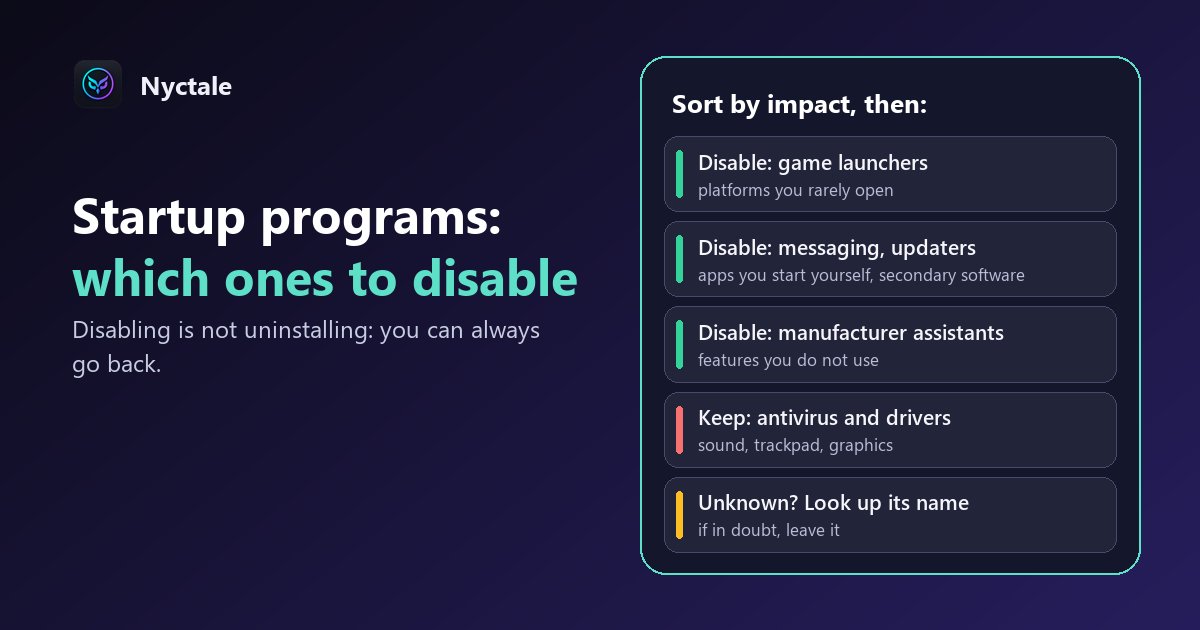
To speed up startup, disable startup programs you do not need straight away: game launchers, software updaters, messaging apps, manufacturer assistants. Leave the antivirus, drivers and anything you do not recognise in place until you have checked. Disabling is not uninstalling: you can go back.
The more programs at startup, the longer Windows takes to become usable. Each is sometimes justified, often superfluous. This article complements a slow PC at startup.
Where do you see startup programs?
Open Task Manager (Ctrl + Shift + Esc), then the 'Startup apps' tab ('Startup' on Windows 10). Each line shows the name, publisher, status and startup impact (high, medium, low). Sorting by impact brings out the heaviest.
The same list exists in Settings > Apps > Startup, with a toggle on each line. In Task Manager, right-clicking a line and choosing 'Disable' does the same thing.
Which should you disable?
- Game launchers and platforms you rarely open
- Messaging and social apps you start yourself
- Automatic updaters for secondary software
- Manufacturer assistants and software whose features you do not use
- Syncing you do not need from the start
Which should you leave?
- The antivirus and security tools
- Essential hardware drivers and utilities (sound, trackpad, graphics)
- Anything you do not recognise: look up its name before deciding
What if I get it wrong?
Nothing serious: disabling a startup program does not delete it. It will simply launch on demand, when you open it. If something is missing, re-enable it in the same list.
How much time do you save?
It varies enormously by machine and list. Measure it yourself: restart, note the time until the PC is really usable, disable three heavy items, then try again. Nyctale reports the number of programs that launch with Windows among its checks.
What if the PC is still slow?
Startup programs are only one cause among others: see a slow computer with no obvious reason. For official procedures, see Microsoft support.
Conclusion: disable with method
Sort by impact, disable what is not essential, keep security and drivers, measure the gain. Nyctale's free analysis counts your startup programs.
Frequently asked questions
Can I disable all startup programs?
No: keep security and essential drivers.
Does disabling delete the program?
No, it simply no longer launches at startup.
How do I know if an item is useful?
Look up its name; if in doubt, leave it.
Is the gain guaranteed?
No: it depends on the machine. Measure before and after.
Does Nyctale look at this?
Yes, it is one of its diagnostic rules.