
Windows Updates Stuck or Failing: What to Do
November 17, 2026 · 7 min read
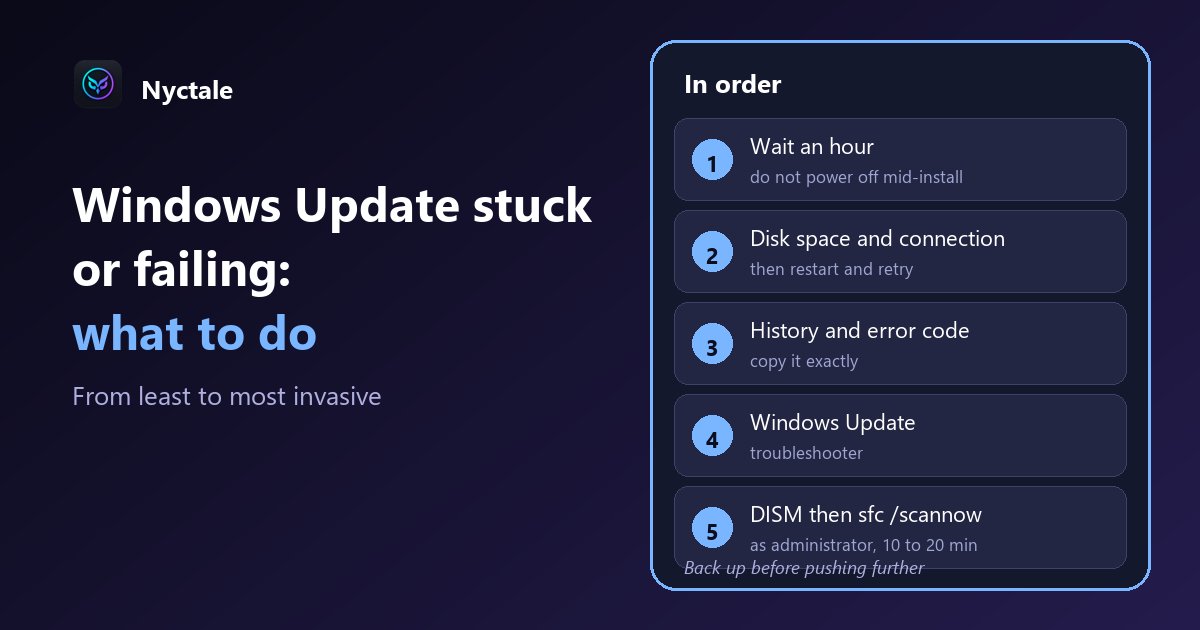
When a Windows update gets stuck or fails, start with the simplest steps: wait, check free disk space and your connection, restart, then run the Windows Update troubleshooter. If it keeps failing, repair the system files with DISM and then sfc /scannow. And back up your documents before pushing further.
Updates are essential for security, but when one stalls, it stalls the PC with it. Here is an order of checks, from least invasive to heaviest, so you do not make things worse by tinkering. If the PC slows down after an update that installed fine, that is a different problem: read Windows 11 slow after an update instead.
Is the update really stuck?
An update can stay at the same percentage for a long time without being frozen: the progress shown is not linear, and big Windows updates are the slowest. Allow at least an hour before concluding it is stuck. That delay is a common-sense guide, not a Microsoft rule.
One useful hint: if the percentage has not moved for a long time and disk activity is zero, a block is likely. It is only a hint. Powering off in the middle of an installation can leave Windows in a state that needs repair, so do it only as a last resort, after backing up what matters.
Which simple checks should you do first?
- Free space on the system drive: an update needs room to download, unpack and keep what it needs to roll back. Nyctale rates a drive 'almost full' below 10 percent free and 'getting full' below 18 percent; those are its own thresholds, not Microsoft requirements.
- The network connection: a Wi-Fi link that drops during the download is enough to make the operation fail. If your connection is slow on the PC only, see Slow Wi-Fi on PC: is it the PC or the router?.
- Unneeded devices: unplug USB sticks, external drives, printers and adapters for the duration of the update.
- A normal restart, then a new search for updates: many failures do not repeat on the second attempt.
How do you find the exact error message?
In Windows Settings, the Windows Update section offers an update history. It lists what installed and what failed, with the update's name (often a number starting with KB) and, in some cases, an error code. Copy it exactly: that is what lets you avoid searching blindly. The exact menu labels vary between Windows versions.
Then search for that code, with the update's name, on Microsoft support. The same code can have several causes; do not follow a tutorial that tells you to delete system folders without explaining why.
Which Windows tool should you run first?
Windows includes a Windows Update troubleshooter. In Settings, it sits in the troubleshooting section, among the other troubleshooters (the exact path depends on your version). It detects and fixes common blocks and does not touch anything important: it is the safest step. Run it, let it finish, restart, then search for updates again.
How do you repair Windows system files?
If the failure persists, Windows' own files may be damaged. Right-click the Start button, open Terminal as administrator, then run the two commands in this order, waiting for the first to finish before typing the second:
- DISM /Online /Cleanup-Image /RestoreHealth: repairs Windows' store of spare parts
- sfc /scannow: checks the system files and replaces damaged ones from that store
Allow 10 to 20 minutes while the computer works on its own, then restart. This is the order Nyctale suggests too: repair the store first, then the files. Without administrator rights, these commands cannot repair anything.
Nyctale checks this point read-only, repairing nothing by itself: with administrator rights, it rereads the Windows image state that Windows has already recorded and looks in the maintenance log for traces of files it could not repair. It only speaks on evidence: it never claims everything is fine, because that reading can miss things. If it finds a problem Windows can repair on its own, it can start the repair with your confirmation. If Windows cannot replace its files, the repair goes beyond a few clicks: it then advises a repair professional or a reinstall of Windows keeping your files, after a backup. However, Nyctale does not read the Windows Update history or error codes: it will not tell you which update failed.
What if Windows rolls back?
Windows sometimes undoes a failing update: the PC restarts on the previous version. That is not serious in itself, and it is the intended behaviour so you are not left with a half-installed system. Note the message shown, check the update history, free some space, check the system files with DISM and sfc, then try again.
If the same update fails several times with the same error, there is no point retrying identically: look for the cause. Sometimes a fix published later solves the problem without any action from you.
When should you stop tinkering and ask for help?
Stop if the PC no longer starts normally or crashes in a loop: see the blue screen on Windows 11 and a PC that restarts by itself. A drive in poor condition can also make update writes fail: check the signs of a failing hard drive. Back up before any heavy operation, and remember that reformatting is not the first resort.
Conclusion: patience, free space, then tools
In most cases, free disk space, a stable connection and the troubleshooter are enough. When they are not, DISM then sfc fix a good share of damaged files. To know within seconds whether your drive is too full or system files are damaged, Nyctale's free analysis checks both without changing anything.
Frequently asked questions
Why is my Windows update stuck?
Common causes are a drive that is too full, an unstable connection, a damaged system file or simply a long installation. Start by waiting, then check free space and read the update history to find the error code.
How long should I wait before deciding it is stuck?
At least an hour, without powering off mid-installation. If the percentage has stopped moving and the disk has been idle for a long time, a block is likely.
In what order should I run DISM and sfc?
DISM /Online /Cleanup-Image /RestoreHealth first, then sfc /scannow, in a Terminal opened as administrator. It is also the order Nyctale suggests.
Windows went back to the old version: is that serious?
No, it is the intended behaviour when an update fails. Note the message, free some space, check the system files, then try again.
Does Nyctale detect a failed update?
No: it does not read the Windows Update history. It checks free disk space and, with administrator rights, the state of Windows system files, two common causes of failure.
Read next
- Slow Wi-Fi on PC: Is It the PC or the Router?
- Windows 11 slow after an update (or update taking forever): what to do
- Before Reformatting Your PC: What a Diagnostic Can Save You
- Hard Drive Failure Symptoms: 7 Warning Signs and the Free SMART Test
- Windows 11 Blue Screen: How to Read the Error Code and Fix the Cause