
Slow Wi-Fi on PC: Is It the PC or the Router?
November 20, 2026 · 8 min read
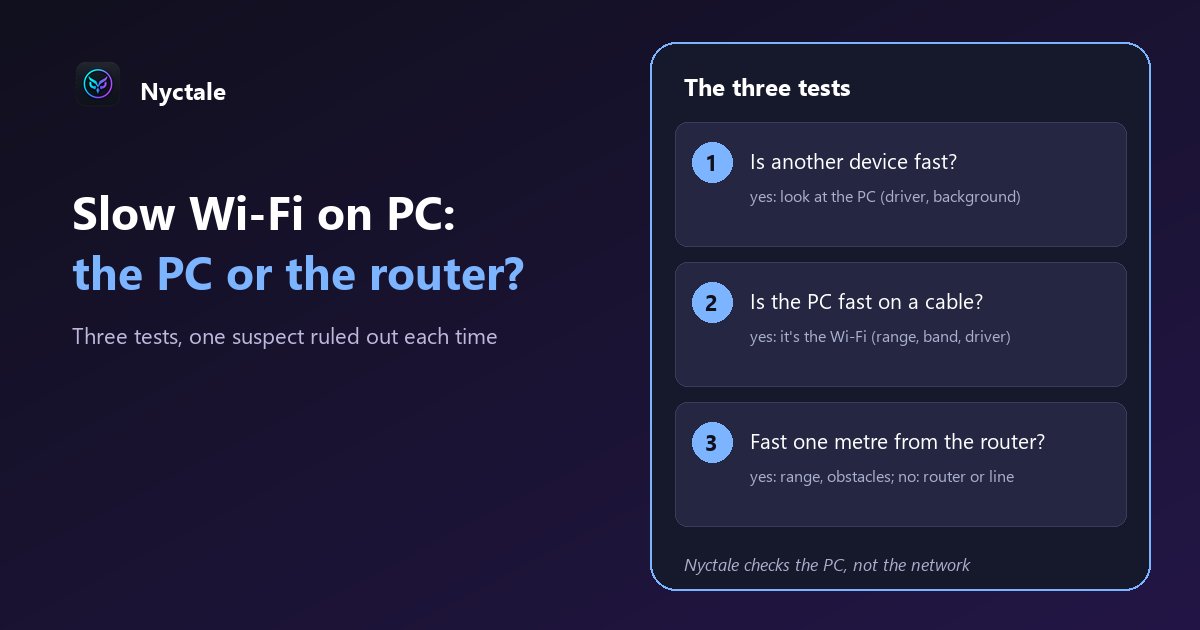
To find out whether slow Wi-Fi comes from the PC or the router, run three tests: compare with another device in the same spot, plug the PC in with a network cable, then test one metre from the router. If other devices are fast and only the PC is slow, the cause is on the PC (driver, Wi-Fi card, background activity). If everything is slow, look at the router, the range or the line.
A slow connection implicates everyone: the PC, the Wi-Fi, the router, the internet provider. Rather than restarting everything at random, work by comparison: each test rules out one suspect. This article gives the order of the tests, what to check on the PC when it is the only one at fault, and what Nyctale can (and cannot) tell you, since it does not measure the network.
How do you measure speed without fooling yourself?
Use an online speed test, always the same one, and run it two or three times in a row: a single test can land in the middle of an update or a backup. During the measurement, close running downloads and pause syncing (OneDrive, Dropbox, backups).
Watch the units. Subscriptions and speed tests talk in megabits per second (Mbps), while browsers and File Explorer often show megabytes per second (MB/s). One byte is eight bits: a download at 12 MB/s is roughly 100 Mbps. Many 'slow connections' are really just a mix-up between the two.
Test 1: is the PC the only slow device?
Measure speed on a phone or another computer, in the same place at the same time, on the same Wi-Fi network. It is also Microsoft's first piece of advice: if the network works well on another device, the problem probably comes from the PC.
- The other device is clearly faster: the problem is specific to your PC (Wi-Fi card, driver, a setting, a background program). Skip to the section about the PC.
- Both are slow: the cause is more general (Wi-Fi, router, line). Carry on with tests 2 and 3.
Test 2: does speed come back on a cable?
A network cable plugged straight into the router takes Wi-Fi out of the equation. If your laptop has no network port, a USB-to-Ethernet adapter does the job; otherwise, run the test on another computer that has one.
- Fast on cable, slow on Wi-Fi: the problem is the Wi-Fi itself (distance, walls, interference, frequency band, Wi-Fi card driver).
- Slow even on cable: look at the router, the line or the subscription. If another computer is fast on the same cable, go back to the PC.
Test 3: is it fast next to the router?
Repeat the measurement over Wi-Fi one metre from the router. If speed is good nearby and poor in the room where you work, it is a matter of range and obstacles: thick walls, floors, a router shut inside a cabinet. Clear the router, move the PC closer, or consider a repeater or a mesh Wi-Fi system.
The frequency band matters too. Many routers broadcast on 2.4 GHz and 5 GHz, sometimes under two different network names. 5 GHz generally offers more speed but has a shorter range and goes through walls less well; 2.4 GHz reaches further but more slowly. Microsoft suggests trying the other band when the connection is a problem. If your PC does not see the 5 GHz network while your phone does, its Wi-Fi card may not support that band, or the band may be disabled in the driver's advanced properties.
If the PC alone is at fault, what should you check?
What is using the connection in the background
A Windows update, a OneDrive sync or a cloud backup can take all the bandwidth with nothing on screen. Task Manager (Ctrl + Shift + Esc), Performance tab, shows the Wi-Fi card's throughput; Resource Monitor (type 'resmon' in the Start menu), Network tab, shows what each program sends and receives. If an update drags on, see Windows updates that get stuck or fail.
The Wi-Fi card driver
A damaged or badly updated driver is enough to throttle a Wi-Fi card. Microsoft suggests uninstalling it from Device Manager (Network adapters, right-click the Wi-Fi card, 'Uninstall device') and restarting so Windows reinstalls it; download the driver from your PC maker's website first, just in case. It is most relevant if the problem began after an update.
The card's power saving
In the Wi-Fi card's properties, Power Management tab, the option 'Allow the computer to turn off this device to save power' can cause drop-outs; Microsoft suggests unticking it to test. On a laptop, a very frugal power mode can also slow the whole PC down; see laptop battery draining fast for the settings.
A VPN, a proxy, or a PC that is simply overloaded
A VPN routes all traffic through a remote server: switch it off for a test. Finally, a PC whose processor or disk is saturated loads pages slowly even with a good connection; in that case the speed test is fine but everything else crawls. See a slow computer with no obvious reason and disk at 100 percent.
As a last resort, Windows offers a network reset (Settings, Network and internet, Advanced network settings, 'Network reset'): it removes and then reinstalls the network adapters and their settings. You will have to re-enter your Wi-Fi passwords, and a VPN may need reinstalling.
What Nyctale can and cannot tell you
Nyctale does not measure your network: it runs no speed test and reads neither the Wi-Fi signal quality nor the card's driver. So it will not tell you whether the router is at fault. What it does is check the PC side of the equation in 19 seconds: a program keeping the processor busy in the background, saturated memory, a disk that is nearly full or in poor health, too many startup programs.
When it sees a Windows update or a OneDrive or Dropbox sync at work, it presents it as normal, temporary activity and advises you to wait: that is often the same activity that is also using the connection. If Nyctale shows a healthy PC and the PC is still the only slow device, the most likely lead becomes the Wi-Fi card and its driver. To compare with other tools, see the best free PC diagnostic tools.
When should you contact your internet provider?
When, on a cable and next to the router, speed stays far below your subscription across several devices and at several times of day. Before calling, restart the router (unplug it for at least 30 seconds, as Microsoft advises) and write down your results: device, cable or Wi-Fi, time, measured speed. Support that receives precise tests can act faster than when told 'the internet is slow'.
Conclusion: compare to locate
Three tests are enough to place the problem: another device, a cable, being close to the router. If the PC alone is at fault, look at what runs in the background, then at the Wi-Fi card driver. For Microsoft's full official procedure, see Fix Wi-Fi connection issues in Windows. And to rule out an overloaded PC in seconds, Nyctale's free analysis checks processor, memory, disk and startup without changing anything.
Frequently asked questions
Why is my Wi-Fi slow on my PC but not on my phone?
The problem is then probably specific to the PC: the Wi-Fi card driver, a card that does not pick up the same band (5 GHz), the card's power saving, a VPN, or a program using the connection in the background.
Why test on a cable?
A cable takes Wi-Fi out. If speed returns to normal on the cable, the cause is the Wi-Fi (range, obstacles, band, driver); if it stays slow, look at the router, the line or the PC.
What is the difference between Mbps and MB/s?
One byte is eight bits. A download shown at 12 MB/s is roughly 100 Mbps, the unit used by subscriptions and speed tests.
Does Nyctale measure the network?
No. It runs no speed test and does not read the Wi-Fi signal. It checks the PC (processor, memory, disk, startup), which lets you rule out an overloaded PC.
When should I call my internet provider?
When, on a cable and next to the router, speed stays very low across several devices and at several times, even after restarting the router.