
PC Noises: What Each Sound Means (Disk, Fan, Coil Whine)
November 10, 2026 · 8 min read
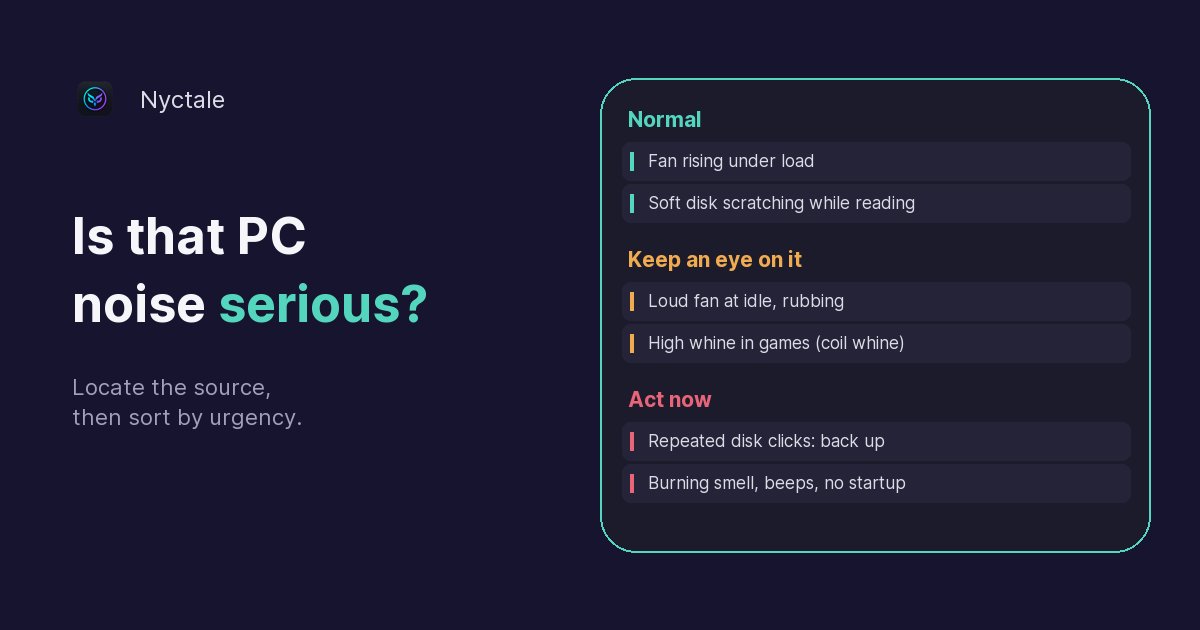
Repeated clicking from the hard drive is the most serious noise: back up your data right away. A whoosh that rises and falls with activity is normal; if it stays loud at idle, a program or dust is making the machine hot. A high-pitched whine that changes with load, especially in games, is usually coil whine: annoying, rarely dangerous. Before you worry, locate the source and note when the noise appears.
A computer is never completely silent, and a new noise is all the more worrying when you do not know where it comes from. This guide helps you sort it out: how to locate a noise, what each family of sounds means (disk, fan, whine, vibration, beeps), which ones call for immediate action, and what diagnostic software can or cannot confirm. For a fan that never calms down, see also the guide to a PC fan that never stops spinning.
How do you locate a computer noise?
The same noise can come from several components. Two questions are often enough: where is it, and when does it appear?
- Listen at idle, a few minutes after startup, then during a heavy task (a game, a video export, copying large files). A noise that follows the load comes from a fan or an electronic whine; a noise that follows file reads comes from the disk.
- Bring your ear close to each area of the case: the front and drive bays for the hard drive, the top and back for the processor and case fans, the graphics card in the middle, the power supply at the top or bottom at the back. On a laptop, listen near the air vents.
- Open Task Manager (Ctrl + Shift + Esc), Processes tab, and watch the CPU and Disk columns when the noise appears: a spike at the same moment is an excellent clue.
- Note the exact moment: only at startup, when going to sleep, in games, all the time. If you can, record the noise with your phone; a repair shop will identify it faster.
Never stop a fan with your finger or an object to “test” it: you could break a blade or let the machine overheat. Switching the computer off and checking for a cable or dust in a fan is safer.
Is a clicking or grinding hard drive serious?
It depends on the kind of click. A mechanical hard drive has spinning platters and a read head that moves. Soft, discreet scratching while it reads or writes is normal: that is the head positioning itself. A slightly louder click when the PC shuts down or goes to sleep, as the heads park, is normal too. The manufacturer Seagate describes these sounds on its page about identifying hard drive sounds.
What should alarm you is a new, regular noise: a sharp click repeating every few seconds, a metallic grinding or scraping, or a drive that spins up, stops and spins up again in a loop, sometimes while the PC freezes. These symptoms often signal a mechanical failure in progress.
- Back up your important files immediately to another device (external drive, USB stick, cloud storage), starting with what cannot be replaced: photos, documents.
- Then use the drive as little as possible: no defragmentation, no repeated checks, no unnecessary large transfers.
- If the data is precious and the drive no longer reads, switch it off and take it to a data recovery service rather than insisting.
An SSD has no moving parts: it makes no noise, even at the end of its life. A click on a PC with only an SSD therefore comes from somewhere else, most often a fan. Silence does not prove an SSD is healthy either: to know a drive's real condition, read the signs of a failing hard drive and the SMART test.
Whooshing, droning or rubbing: what is the fan telling you?
A fan produces several different noises, and they do not mean the same thing.
A whoosh that rises then falls
This is normal: the processor or graphics card heats up during an effort, the fan speeds up, then slows down when the load drops. Nothing to do.
A loud fan at idle
If the fan blows hard while you are doing nothing, the processor is still getting hot. Two causes dominate: a program looping in the background, or heat that is not being removed well (dust in the vents, a laptop resting on a bed or sofa, worn thermal paste on a machine several years old). Task Manager settles it in seconds. If no program explains the heat, a clean-out is needed; at a repair shop, a full clean with fresh thermal paste usually costs 50 to 80 euros. To go further, see how to tell if your PC is running too hot.
Rubbing, rhythmic ticking or an irregular noise
A fan that rubs, ticks with every turn or makes a noise that varies regardless of load has a mechanical problem: a cable touching the blades, built-up dust, a worn bearing. Switch off, unplug, look: moving a cable aside or removing dust often fixes it. A worn bearing, recognisable by a low drone or a squeak at startup that fades as it warms up, is fixed by replacing the fan, an inexpensive part on a desktop PC. Do not wait too long: a fan that slows down or stops lets the machine overheat.
A high-pitched whine or buzz: should you worry?
A high-pitched whine, sometimes close to a buzz, whose pitch changes with activity is usually coil whine. It comes from the coils in the power circuits, most often on the graphics card or in the power supply, which vibrate slightly depending on the current flowing through them. It is typical of games and game menus, where the graphics card renders hundreds of frames per second.
This noise is annoying but is generally not a sign of failure. Its intensity varies from one unit to another of the same model. To reduce it, cap the frame rate (vertical sync or a frame limiter in the game or graphics driver): the whine often drops sharply in menus. If it is unbearable on a new product, the seller's warranty is the only real solution.
Important exception: a sharp electrical crack, a buzz with a smell of burning or hot plastic, or smoke is not coil whine. Switch the computer off, unplug it and do not turn it back on until it has been checked, especially the power supply.
Humming, vibration or beeps: how do you sort the rest?
A low hum or vibration
It often comes from a part that vibrates rather than a failing component: a loose screw, a badly fixed side panel, a hard drive not screwed into its bay, a spinning optical drive, or a case standing on a surface that resonates. Press gently on the panel while the noise is there: if it stops, tighten the screws or put the PC on a more stable surface.
Beeps at startup
Beeps from the motherboard at startup are error codes: they report a problem detected before Windows even starts, often the memory or the graphics card. Their meaning depends on the motherboard or computer manufacturer: count the beeps (long and short) and look them up in your model's documentation. A single short beep followed by a normal startup is, on some machines, the usual signal that all is well.
Which noise calls for immediate action?
- Repeated clicks, grinding or looping spin-ups from the hard drive: back up immediately.
- Electrical cracking, burning smell or smoke: switch off and unplug.
- Beeps at startup with a PC that will not start: motherboard documentation or a repair shop.
- A fan that rubs, slows down or stops: deal with it quickly, before the heat causes slowdowns or shutdowns.
The rest, a loud fan at idle, a whine in games or a vibration, can wait for a clean-out or a setting change, as long as you check that things do not get worse.
What software can check, and what it cannot
No software can hear your PC. Nyctale cannot either: it does not use the microphone and does not read any temperature sensor. It can, however, confirm or rule out the causes behind a noise, using what Windows already records:
- For the disk: it reads the health status Windows reports for each drive and flags it if it turns to “Warning” or “Unhealthy”. An “Unknown” status, common on USB enclosures, is not treated as a failure.
- For a fan at idle: it spots a Windows component or a program keeping the processor busy in a loop, the most common cause of a fan that never calms down.
- For heat: it counts, in the Windows log, the episodes over the past 14 days when the processor had to slow itself down for protection, and cross-checks them with sudden shutdowns. If no program explains the heat, it concludes there is a cooling problem and tells you plainly: no software replaces a clean-out.
A clicking hard drive whose health status still reads “Healthy” remains a warning sign: the health status does not always warn before a failure. When in doubt, back up first and analyse second. If the noise comes with freezes or restarts, read also PC freezes: hardware or software? and PC restarts by itself.
Conclusion: listen, locate, sort
A PC noise is judged by its source and by when it appears. A clicking hard drive comes before everything else: back up first. The fan almost always tells a story about heat, software or physical. A high-pitched whine is usually a nuisance, not a failure, and vibrations are fixed with a screwdriver. To check in a few seconds the state of your drives and what is heating up your machine, Nyctale's free analysis reads these signals without changing anything.
Frequently asked questions
My hard drive is clicking, what should I do?
If the clicks are regular and new, or if there is grinding, back up your important files immediately, then use the drive as little as possible. Soft scratching during reads is normal.
Why is my fan loud when I am not doing anything?
Because the processor is still getting hot: a program is looping in the background, or heat is not removed well because of dust or a blocked vent. Task Manager tells the two apart.
What is coil whine?
A high-pitched whine produced by the coils in power circuits, mainly on the graphics card or power supply, which varies with load. Annoying but generally harmless; capping the frame rate often reduces it.
Does an SSD make noise before it fails?
No. An SSD has no moving parts and stays silent, even at the end of its life. You need to read its health status to know whether it is weakening.
What do beeps at startup mean?
They are motherboard error codes, often related to the memory or graphics card. Their meaning depends on the manufacturer: check your model's documentation.