
How to Tell If Your PC Runs Too Hot: Normal CPU and GPU Temperatures
November 6, 2026 · 8 min read
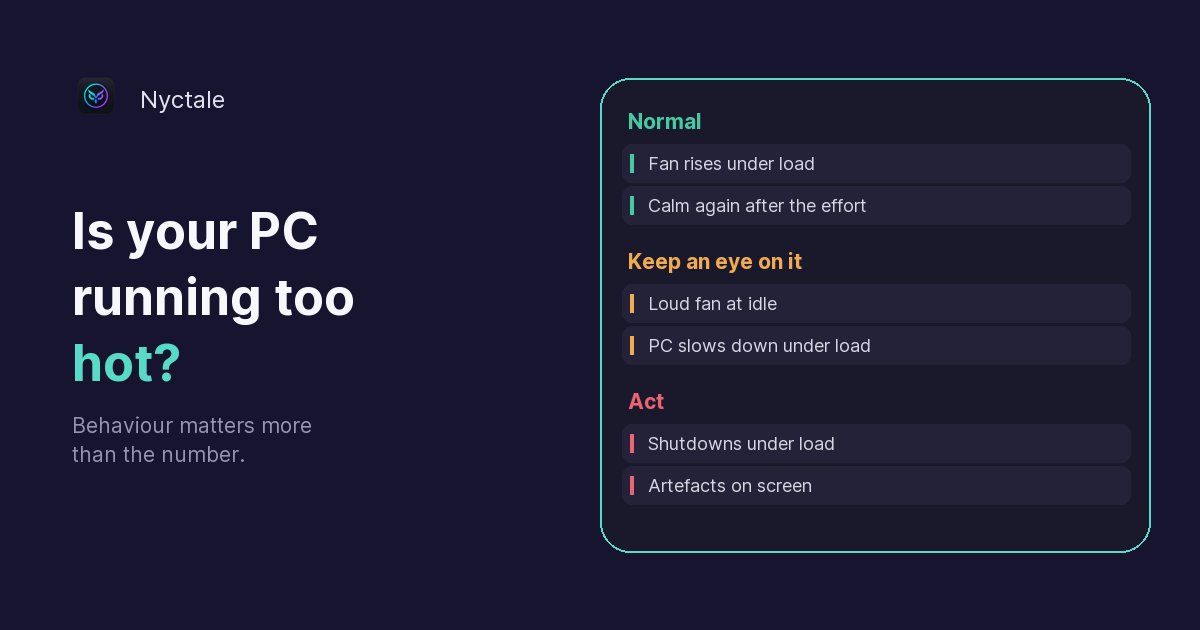
There is no universal normal temperature: it depends on the processor or graphics card model, the load and the ventilation. To know whether your PC runs too hot, measure at idle and then under load, compare with the limit the manufacturer gives for your exact model, and watch how the machine behaves: fan at full speed at idle, slowdowns under load, sudden shutdowns.
The charts online give precise ranges, but they do not agree from one site to the next, and what is ordinary for a thin laptop would be abnormal in a well-ventilated tower. Rather than a number to remember, here is a method, and how to read what it tells you.
Is there a normal temperature for a PC?
No, not a single one. A processor goes from a calm temperature to a high one within seconds as soon as it is asked to work: that is ordinary behaviour, and the fan is there to keep up. The value you read also depends on the room, the case, the age of the machine and how the manufacturer tuned the cooling.
The only solid reference is the manufacturer's limit, and that varies too. Intel, for example, says the maximum junction temperature differs by product and is usually between 100°C and 110°C. Be careful what that figure means: it is the point where protections kick in, not a cruising temperature to aim for, nor proof that a value just below it is healthy.
So the right question is not 'how many degrees?' but 'when, and what is the machine doing at that moment?'. A high temperature during a video render that falls afterwards has nothing in common with a high temperature while nothing is running.
How do you measure CPU and GPU temperature?
You need a utility that reads the sensors. HWiNFO, covered in our selection of free diagnostic tools, shows both the processor and the graphics card. For the graphics card alone, Task Manager (Performance tab, GPU section) also shows the temperature on many PCs with a dedicated card. Measuring carries no risk: these tools only read.
- Wait five to ten minutes after startup: Windows often works in the background right after boot, which would skew the reading.
- Close your programs and note the idle temperature, along with the fan noise.
- Run what you normally do when the PC struggles: a game, a video export, a long work session. Let it go for at least fifteen minutes, because heat builds up.
- Note the settled value rather than a one-second peak, and look at the processor frequency: if it drops while the task continues, that is an important clue.
- Stop the task and watch: the temperature should fall and the fan should calm down within a few minutes.
Repeat the measurement with the PC in its usual spot. A laptop tested on a desk and then used on a sofa gives very different numbers.
How do you know whether the reading is worrying?
First find the exact name of your component, shown by your utility or in Task Manager, then its page on the manufacturer's site: Intel or AMD for the processor, the chip or card maker for graphics. The term to look for is the maximum operating temperature, sometimes written Tjunction or Tjmax. Then compare your reading with that limit, and read it together with the behaviour:
- Well below the limit under load, then calm again afterwards: all is fine, even if the number looks high to you.
- Close to the limit under load, but with no loss of speed: keep an eye on it. Some recent processors and thin laptops are tuned to run hot, and this does not prove a fault.
- Close to the limit with a collapsing frequency: the PC is throttling. You lose performance, and the cooling cannot keep up.
- Temperature that stays high at idle, fan blowing while nothing is running: this is the most telling sign, whatever the exact number.
What is thermal throttling?
A processor has two protections, according to Intel: throttling, then automatic shutdown. When the chip gets too hot, it first reduces its power to stay at a safe temperature: the PC slows down, with no error message at all. That is why a machine can turn slow under load without anything appearing to crash. If throttling is not enough, the PC cuts out.
Windows keeps a record of these episodes: event 37 from the Kernel-Processor-Power source, in the System log. But do not read it too quickly. It only says the processor was limited, and heat is not the only possible reason: a power limit, the battery or a manufacturer profile produce the same event.
We fell for this ourselves. On the PC used to calibrate Nyctale, the first version of the rule concluded it was dust. Looking closely at the 12 events in the period, 8 fell within ten minutes of a startup, and the other 4 reported a continuous limit lasting 33 to 48 hours, in other words a permanent power cap. Not one was a heat spike.
What can Nyctale check, and what can it not see?
To be clear: Nyctale does not read any temperature. It uses no sensor and no driver. Its free analysis reads the Windows log over 14 days and discards what misleads: limits at startup, limits on battery, where throttling is intended, and permanent caps lasting an hour or more. It then needs at least three real episodes before reporting that the PC is slowing itself down to avoid overheating.
It cross-checks that result with what is running at the time. If the machine throttles while lightly loaded and no stuck program explains the heat, Nyctale concludes the problem is most likely the cooling, and says no software can fix it. If a program is to blame, it points you there first. It also flags a processor running below 60% of its normal speed, which can come from heat or from an overly strict power-saving mode.
Its limit: this reading covers the processor. For the graphics card, only a measurement with a utility will tell you.
What do you do when the temperature climbs?
Go from the simplest to the most expensive, measuring again after each step:
- Look for a runaway program: in Task Manager, sort by processor. It is the quickest cause to fix, as our guide to a slow computer with no obvious reason explains.
- Free up the airflow: a laptop on a bed, sofa or cushion has its air intakes blocked. Put it on a hard surface.
- Dust the vents with a can of compressed air, with the device off and unplugged, preferably outdoors. Also check that the fan spins: our article on a fan that never stops goes through the causes.
- Check the power mode: Balanced is enough for everyday use and runs cooler than maximum performance modes.
- In games, cap the frame rate: the graphics card stops working harder than it needs to.
- If the heat persists on a machine several years old, the thermal paste is probably worn. A full clean with fresh paste at a repair shop usually costs 50 to 80 euros.
Be wary of any program that promises to cool your PC: if the cause is dust or thermal paste, no software will change anything.
When should you really worry?
Three signs call for action right away. The PC shuts down or restarts by itself during heavy work: the final protection has probably kicked in, especially if the fan was blowing hard just before. It freezes after a while in use. Or artefacts appear on screen under load (blotches, coloured shapes, lines), which points to the graphics card.
In those cases, stop heavy tasks, back up your important files and have the machine checked if the steps above change nothing. Keep in mind that a sudden shutdown alone does not prove overheating: a power cut, a held button or an empty battery give the same result. What counts is the combination with throttling or load.
Conclusion: a method rather than a number
Measure at idle and under load, compare with your model's page, watch what the machine does. If you want to know, without a technical tool, whether your processor has throttled over the past two weeks, Nyctale's free analysis reads those episodes in the Windows log and tells you whether the cooling is to blame.
Frequently asked questions
What is a normal processor temperature?
There is no single value: it depends on the model, the load and the cooling. Compare your reading with the maximum temperature on your model's page, and above all check that the temperature falls after the effort.
Why does my PC slow down when it heats up?
The chip reduces its power to stay at a safe temperature: that is thermal throttling. The PC turns slow without showing any error.
How do I measure my PC's temperature safely?
With a sensor-reading utility such as HWiNFO, at idle and then after at least fifteen minutes under load. These tools change nothing.
Should I replace the thermal paste?
Only if the PC still runs hot after a good dusting, most often on a machine several years old. A repair shop usually does it for 50 to 80 euros along with a full clean.
Does Nyctale show the PC's temperature?
No. It does not read temperature sensors. It reads the episodes where the processor was limited in the Windows log, discards false signals and cross-checks the result with the machine's load.