Is My PC Compatible With Windows 11? How to Check
October 14, 2026 · 3 min read
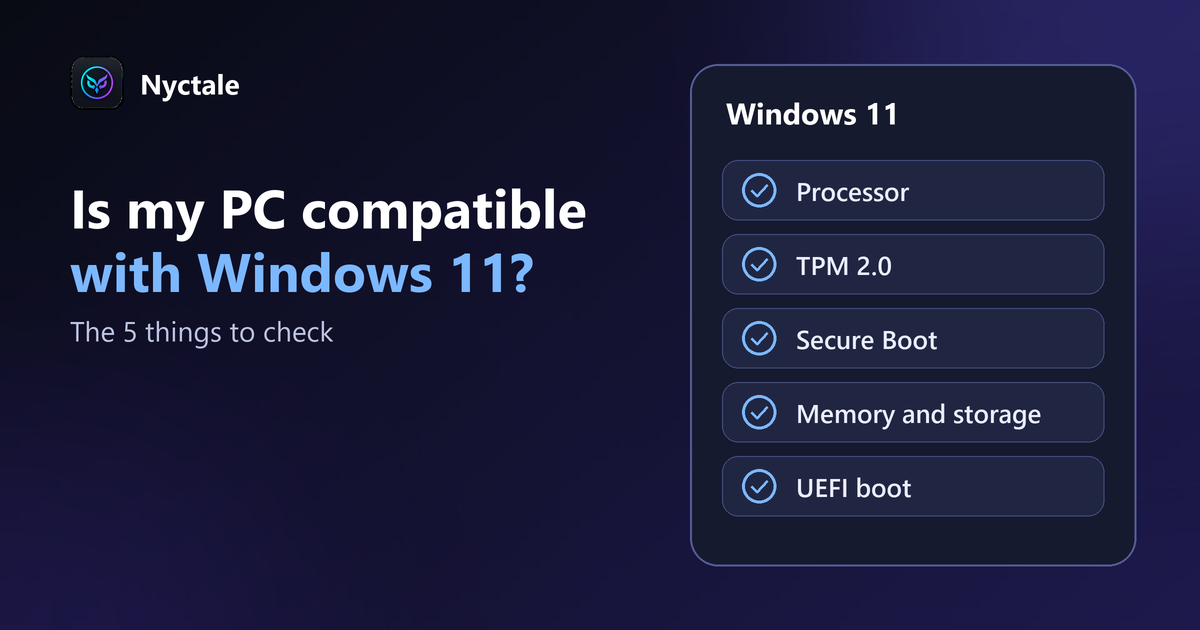
To find out whether your PC is compatible with Windows 11, compare it with Microsoft's official requirements: a supported processor, a TPM 2.0 chip, Secure Boot, and enough memory and storage. Microsoft offers a free tool that runs this check, and the official specifications page remains the reference, since exact requirements should be confirmed at the source.
Many perfectly healthy PCs are refused the upgrade, often for an easy-to-fix reason, sometimes because of a hardware limit. This article explains what Windows 11 asks for, how to test your machine and what to do with the verdict. Exact values are on the Windows 11 specifications page, which we invite you to read.
Which requirements should you check?
The points that block most often:
- The processor: it must be on Microsoft's list of supported ones
- TPM 2.0: a security chip, sometimes present but switched off in the BIOS
- Secure Boot: a firmware option, sometimes disabled
- Memory and storage: minimums to meet
- UEFI boot mode: rather than the legacy mode
How do you test your PC?
- Use Microsoft's PC Health Check app: it says whether the PC is compatible and, if not, why
- Look in Windows Settings under Windows Update: a message shows whether the upgrade is offered
- For detail, open System Information (msinfo32), which shows the BIOS mode and the Secure Boot state
What if TPM or Secure Boot shows as "absent"?
It is often a setting turned off rather than missing hardware. In your motherboard's BIOS or UEFI, look for the TPM options (sometimes called PTT on Intel or fTPM on AMD) and Secure Boot. Names vary by brand: check the manufacturer's documentation, and note your settings before changing anything.
What if the processor is not supported?
This is the firmest limit. You then have three options: stay on your current Windows version for as long as it is supported (for Windows 10, free support ended on 14 October 2025: see Windows 10 end of support: what to do with your PC), consider replacing or upgrading hardware, or, for advanced users, look at unofficial workarounds, which carry risks and are not guaranteed. Our article before buying a new PC helps you decide.
Before migrating: check the PC's health
An upgrade on a fragile PC goes badly. Check your disk (see signs of a failing hard drive), free space and recent crashes. A Nyctale analysis reads the Windows log and disk health: a good starting point before any migration. If Windows 11 later feels slow, read Windows 11 slow after an update.
Conclusion: check first, always back up
Check compatibility with the official tool, fix what is only a setting and back up your data before any upgrade. Nyctale's analysis is free and gives you a health overview of the PC in a few minutes.
Frequently asked questions
How do I know if my PC can run Windows 11?
With Microsoft's official app, or in Windows Update settings.
My PC has a TPM but is refused, why?
It may be disabled in the BIOS, or the processor is not supported.
Can you install Windows 11 without TPM 2.0?
Officially no. Workarounds exist but are neither official nor guaranteed.
Should I back up before upgrading?
Yes, always.
Is Windows 10 still usable?
Its free support ended on 14 October 2025. An Extended Security Updates programme runs until 12 October 2027 for consumers: our article on Windows 10 end of support covers the options.